






In a world where distractions lurk at every corner, the last thing anyone needs is an unexpected phone call interrupting their groove. Whether it’s a pesky telemarketer or that one friend who just won’t take a hint, disabling calls on an iPhone can be a game-changer. Imagine enjoying a peaceful dinner without the constant buzz of your phone or finally diving into that book you’ve been meaning to read without interruptions.
Understanding Call Settings On iPhone
Call settings on an iPhone provide users with control over how they handle incoming calls. These settings enable a tailored experience based on personal needs and situations.
Overview of Call Features
iPhones feature various call options that enhance user experience. Features include call forwarding, call waiting, and Do Not Disturb. Call forwarding allows users to redirect incoming calls to another number. Call waiting notifies users of another incoming call during an active conversation. Do Not Disturb silences all incoming calls and alerts, creating uninterrupted time. Each feature serves specific uses, helping users manage their communication effectively.
Reasons To Disable Calls
Disabling calls offers multiple advantages. Users can maintain focus during significant activities, reducing distractions. Peaceful moments such as meals or meetings benefit from silenced notifications. Productivity improves when interruptions from incoming calls diminish. Individuals seeking downtime from constant communication benefit greatly from this adjustment. Mental well-being may enhance, fostering a healthier relationship with technology.
Methods To Disable Calls On iPhone

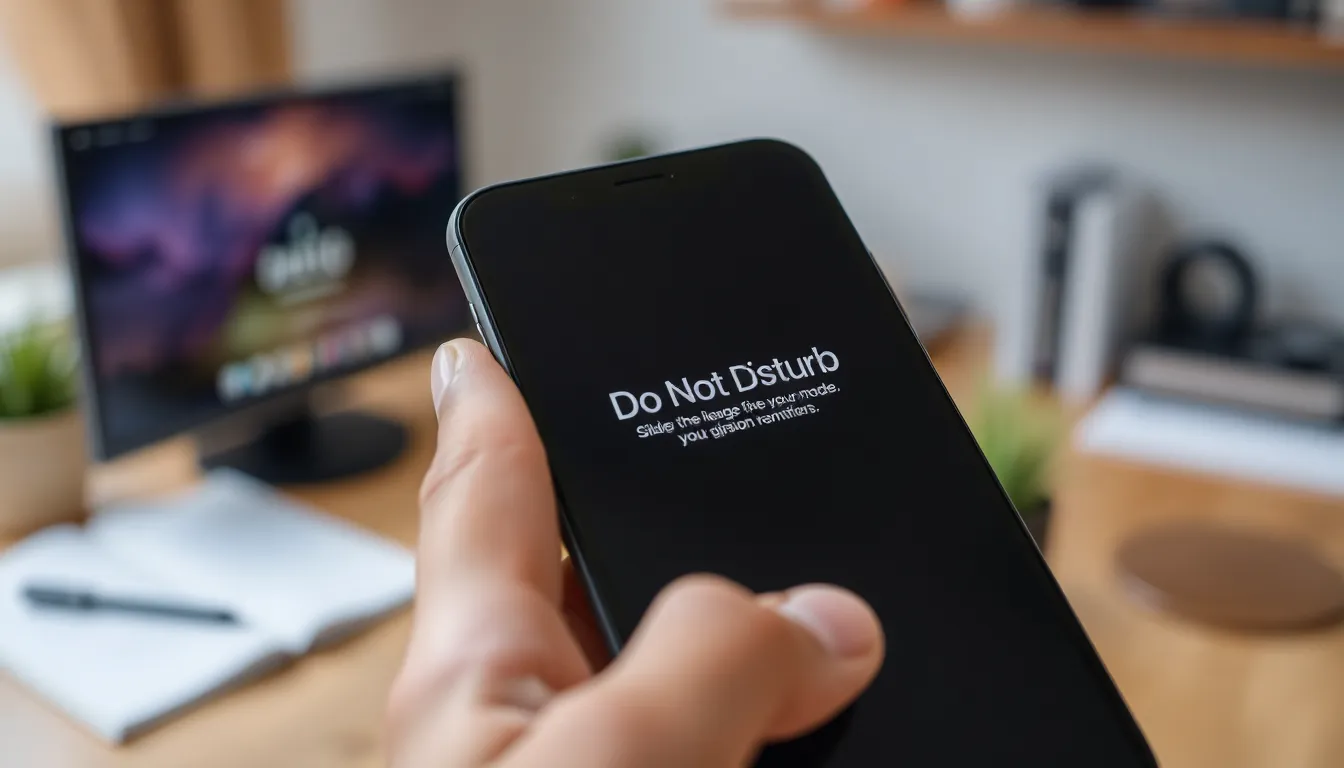
Users can choose various methods to disable calls on an iPhone, allowing for improved focus and tranquility in daily activities.
Using Do Not Disturb Mode
Do Not Disturb mode silences all incoming calls and notifications. Activating this feature is simple: open Settings, select Focus, then tap on Do Not Disturb. Users can schedule this mode or enable it manually as needed. Customize allow calls from specific contacts in the settings if necessary. This feature is particularly beneficial during meetings or other important events, ensuring minimal interruptions.
Blocking Specific Numbers
Blocking specific numbers stops unwanted calls completely. To block a number, navigate to the Phone app, locate the number in Recent Calls, and tap the information icon. Users can then select Block this Caller. This option prevents further communication from unwanted contacts, creating a more pleasant experience. Users can manage their blocked contacts through the Settings app under Phone and Blocked Contacts. Tailoring this list enhances overall phone usage and reduces distractions.
Adjusting Call Forwarding Settings
Call forwarding allows users to redirect incoming calls to another number, providing flexibility in managing communication. This feature ensures that important calls aren’t missed when focused on other tasks.
How To Configure Call Forwarding
To set up call forwarding, users can access their iPhone settings. Navigate to Settings, then Phone, and select Call Forwarding. Toggle the Call Forwarding switch to activate it. Enter the number to which calls should be forwarded. Confirm that the number is correct before exiting the settings. The iPhone then automatically diverts incoming calls to that number, ensuring uninterrupted focus.
Temporary vs. Permanent Options
Users can choose between temporary and permanent call forwarding options. Temporary forwarding allows redirection for a specific duration, ideal for short-term situations. Users can disable it easily when no longer needed. Permanent forwarding remains active until users manually deactivate it, suitable for long-term scenarios. Opting for one of these options depends on individual preferences and circumstances.
Utilizing Airplane Mode
Airplane mode offers a simple way to disable calls on an iPhone. Users enable this feature to eliminate all incoming and outgoing communications effortlessly.
Activating Airplane Mode
To activate Airplane mode, users can swipe down from the top right corner of the screen to access the Control Center. Tapping the airplane icon activates the mode immediately. Alternatively, users can navigate to Settings, select Airplane Mode, and toggle it on. Once activated, the iPhone disconnects from all cellular networks. Incoming calls, text messages, and notifications become silent until users turn the mode off.
Limitations of Airplane Mode
While Airplane mode provides a distraction-free environment, it also restricts certain functionalities. Users cannot make or receive calls while this mode is activated. Additionally, mobile data and Wi-Fi access become disabled unless manually re-enabled. Users miss important notifications or alerts unless they turn Airplane mode off, leading to potential oversights. Consider these limitations if maintaining essential communication is crucial during specific times.
Disabling calls on an iPhone offers users the chance to reclaim their time and focus. By utilizing features like Do Not Disturb, call forwarding, and Airplane Mode, individuals can effectively manage interruptions and create a more serene environment. Tailoring these settings not only enhances productivity but also supports mental well-being by reducing distractions.
Whether it’s during a meeting, a quiet dinner, or dedicated reading time, the ability to control incoming calls empowers users to engage fully in their activities. With simple adjustments, the iPhone can transform from a source of distraction into a tool for enhanced concentration and peace. Embracing these options can lead to a more balanced and fulfilling daily life.