






Is your Google Calendar looking a little too bland? It might be time for a colorful makeover! Changing the calendar color on your iPhone isn’t just a fun way to express yourself; it can also help you stay organized and make important events pop. Imagine a world where your meetings, birthdays, and deadlines are all dressed in vibrant hues, making it easier to spot what matters at a glance.
Understanding Google Calendar Colors
Google Calendar colors play a crucial role in organizing events. Recognizing and utilizing different colors can enhance visual clarity and make event management more efficient.
Importance of Color Coding
Color coding provides significant advantages for users. It helps distinguish between event types, such as work-related meetings and personal activities. Associating specific colors with particular categories streamlines navigation. Many users find it easier to assess their schedules at a glance. Identifying critical deadlines or appointments quickly becomes achievable through effective color usage.
Benefits of Customization
Customization adds a personal touch to Google Calendar. Users gain control over their organizational style by selecting colors that resonate with them. Creating a visually appealing calendar fosters a more enjoyable planning experience. Custom colors can motivate individuals to engage with their schedules regularly. Additionally, vibrant colors enhance focus and reduce the likelihood of missed events. With a tailored approach, users can transform standard calendars into effective organizational tools.
Changing Google Calendar Color on iPhone
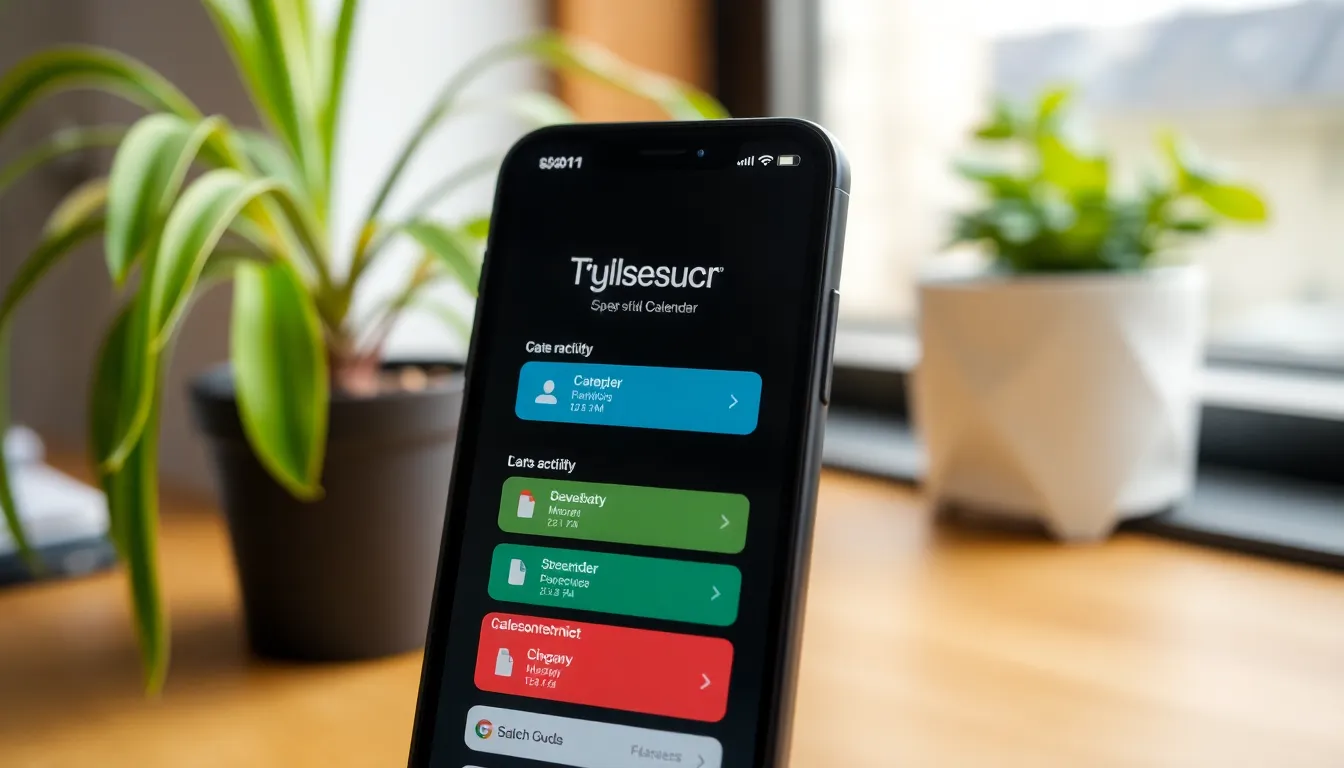
Changing colors in Google Calendar on an iPhone optimizes organization and enhances personal aesthetics. The process is straightforward and empowers users to personalize their scheduling experience.
Accessing Google Calendar App
First, locate the Google Calendar app on the iPhone. It typically appears on the home screen or within an app folder. Tap the app icon to open it, which displays the calendar view. Users need to ensure they are signed into their Google account to access their calendars. The app loads events and makes navigation intuitive and user-friendly.
Selecting a Calendar to Change
To change a calendar’s color, find the list of available calendars. Scroll down or tap on the menu icon to view all calendars associated with the Google account. Select the calendar intended for the color change. When tapping on the calendar, a settings menu appears, leading to further customization options. Color choices enhance event identification and create visual distinction among various calendars, fostering effective time management.
Steps to Change Calendar Color
Changing the calendar color on an iPhone enhances visual organization and simplifies schedule management. Here’s how to do it effectively.
Navigating to Settings
Open the Google Calendar app on your iPhone. Tap the three horizontal lines in the top-left corner to reveal the menu. Select the “Settings” option from the list. The app displays various calendars linked to the user’s account. Choose the specific calendar you wish to modify by tapping on its name. This action leads to a new menu where further customizations can take place.
Choosing Color Options
Within the calendar settings, locate the “Color” section. Users will see a variety of color choices available for customization. Each color option is represented by a small square, making it easy to visualize selections. Tap on the preferred color to apply it. The newly selected color immediately updates the calendar. Repeating this process for multiple calendars creates a cohesive and organized view of events.
Troubleshooting Color Change Issues
Color change issues in Google Calendar on an iPhone can occur for various reasons. Identifying and addressing these problems boosts user experience and ensures smooth operations.
Common Problems Encountered
Users often report that color changes don’t save properly. This issue may arise from connectivity problems or app glitches. In some cases, the selected color might not display across all devices, leading to inconsistencies. Another frequent problem includes being unable to access the color settings menu. Users sometimes find that their calendars don’t appear in the list, limiting customization opportunities.
Solutions and Tips
Restarting the Google Calendar app can resolve temporary glitches. Ensure a stable internet connection before attempting color changes. Checking for updates in the App Store might also help; newer versions often fix bugs. Clearing the app’s cache can improve performance and resolve saving issues. If problems persist, logging out and back into the Google account typically refreshes settings, restoring full functionality.
Changing the color of Google Calendar on an iPhone offers an easy way to boost organization and personalize the planning experience. By implementing vibrant colors users can quickly identify important events and differentiate between various commitments. This simple customization not only enhances visual clarity but also encourages regular engagement with schedules.
With the straightforward steps outlined in the article users can effortlessly transform their calendars to reflect their preferences. Addressing potential troubleshooting issues further ensures a seamless experience. Ultimately a well-organized and visually appealing calendar can significantly improve time management and reduce the chances of missed appointments.